
FAQ10:How to use the APP ECRmate to program ECR
read0order date2024-10-31 15:55:47
1.Run the APP
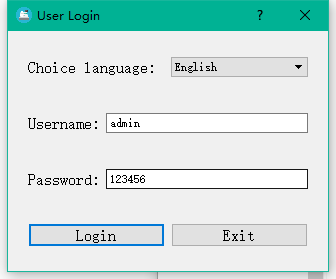
1) Double click the exe file to enter the login page.
2) Select a kind of language from English,Greek and Hebrew.(Default language is English)
3) Input the user name that default value is admin and password that default value is 123456.
2. introducton of Interface
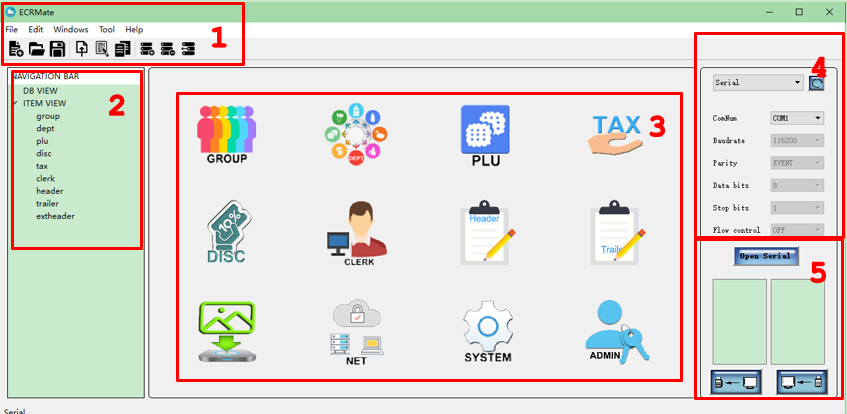
The interface is divided into 5 parts
1)Menu bar
2)View bar
3)Work bar
4)Port connection
5)Data transmission
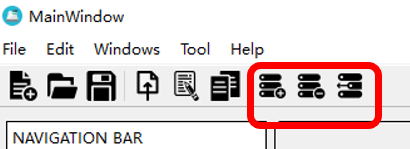
6) The part marked in the following picture are temporarily unavailable.
3.How to use this APP?
1) Connection
There are two ways to connect the PC and ECR.
A) Serial
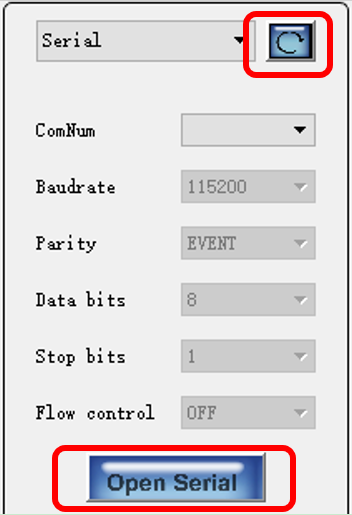
After connecting the PC and ECR by serial cable,you need to click “refresh”button to read the ComNum as follow picture.then you can click “Open Serial” button to open serial port.
B) TCP
At first,connect the ECR to the network with network cable and check the IP of your PC.
Then set the NET WORK on ECR as shown in the following right picture.
Notice:You need to choose YES in DHCP option.In this way,ECR can obtain IP from network automatically.
You need to ensure the server IP you set is the same as the IP of your PC.
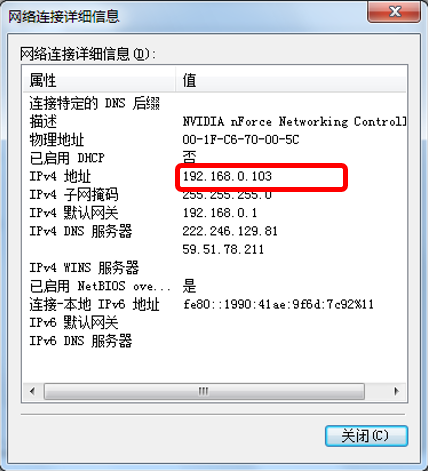
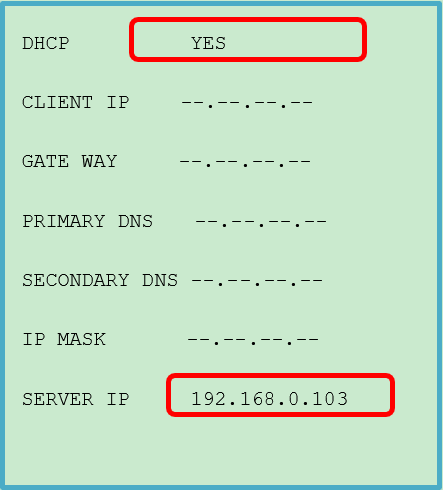
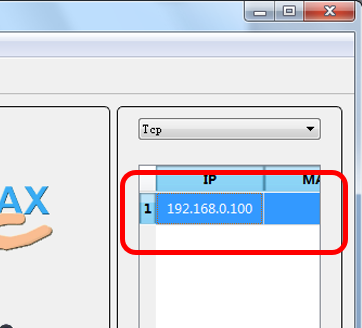
In the end,restart ECR and open the APP,If they are connected successful,it will read the IP of ECR(CLIENT IP) automatically after a few seconds as follow.
2) New or Open a DB file
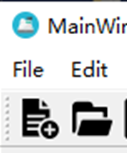
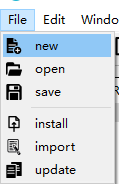
1) At first,you need to open db file in that case there is a DB file you need to edit,or you can new a DB file at first.You can click the “open file” icon or Click the “open” submenu under “file” to open a select window.Selectting a db file you want to open,then click “open”button to load this db file to ECRMATE APP.

3) Items setting
For following items in work bar we can edit the items except GRAPHIC,NET and SYSTEM.
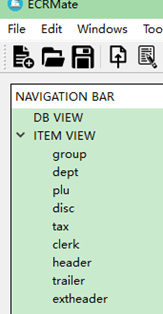 group-----It is used to set or view group list of ECR.
dept-----It is used to set or view department list of ECR.
plu-----It is used to set or view PLU list of ECR.
disc-----It is used to set or view discount and increase settings.
tax-----It is used to set or view tax list.
clerk-----It is used to set or view operators info.
header-----It is used to set or view the invoice header of ECR.
trailer-----It is used to set or view the invoice footer of ECR.
extheader-----It is used to set or view the receipt header of external printer which is connected with ECR.
a. GROUP/DEPARTMENT/PLU/TAX/DISCOUNT/CLERK/HEADER/TRAILER/EXHEADER/NET setting
Taking the PLU as an example to explain how to set items.
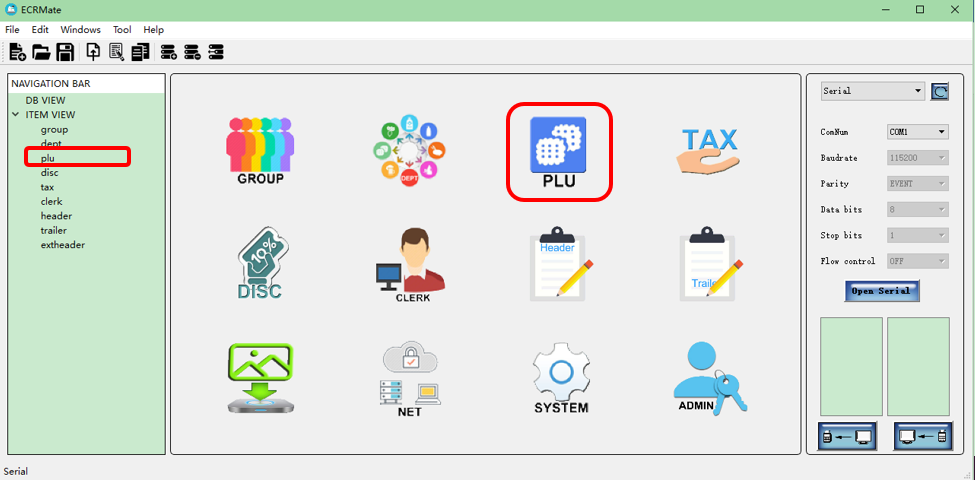
You can click the PLU icon in work bar or click PLU menu in view bar to open PLU work window.
Random: It is the code of PLU, modifying is forbidden after open it on ECRmate.
Name: It is the name of PLU.
Dept: It is the department of PLU.
Price: It is the price of PLU.
Stock+: It is used to increase the inventory of PLU.
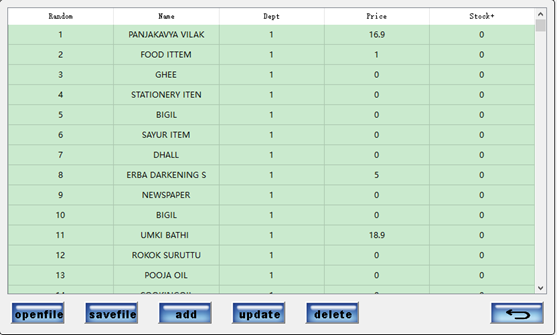
There are 6 buttons under the work bar:
①openfile
Clicking the “openfile” button to import a new PLU list in PLU work window.Please notice the file type is csv.Please refer to the examples in CSV folder that comes with the ECRmate APP for the PLU list formate.
② savefile
Clicking the “savefile” button to save PLU file as CSV type.
NOTICE:The following 3 buttons are only available in PLU.
③add
Select one or more PLUs you want to add and click the “add” button to add PLUs to ECR,if addition is successful,the result is as show on the right.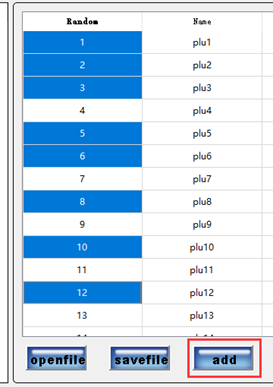
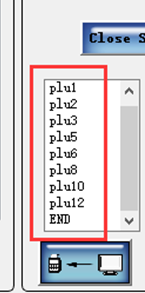
④update
Modify those PLUs you want to change from ECR and select them as above method,clicking the “update” button to update those PLUs to ECR
⑤delete
Select those PLUs you want to delete from ECR and click the “delete” button delete PLUs from ECR.
⑥return
Clicking the “return”  button to return to the main interface
You can also set other items as PLU setting. Please remember to click the save icon or save submenu to save this item file after completing editing each item.
b. LOGO (graphic) setting
It is used to set custom logo image at the beginning or end of the receipt. The process should be:
① Clicking the “GRAPHIC” icon to open the setting page of graphic.

② Set the size of the image in pixels.
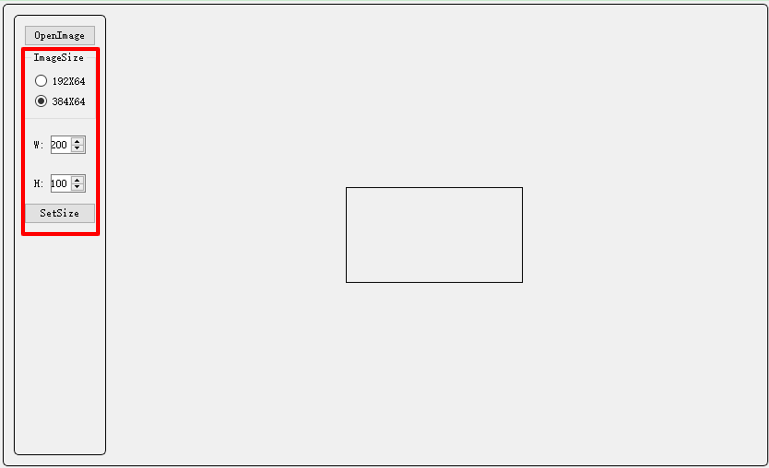
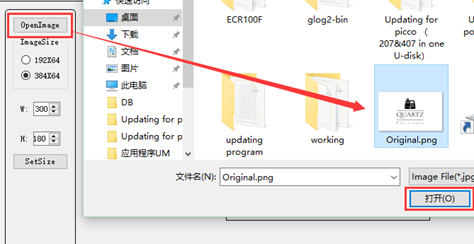
③ Open the logo image by pressing “OpenImage” button. As shown in the following figure, select the logo image you need to print in the receipt, and press the "open" button to open this image.
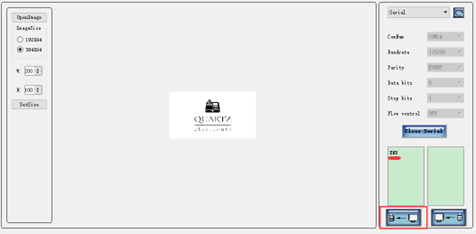
④ Clicking the “install” button to install the image to ECR. Prompt 'end' in the install dialog box to indicate successful installation.
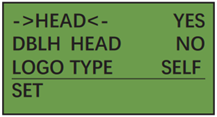
⑤ Select the first image usually named “self” or “auto” for the logo item set at the header or footer in the ECR.
4) Data transmission
1)download
Clicking the “download” button to download item file from ECR.
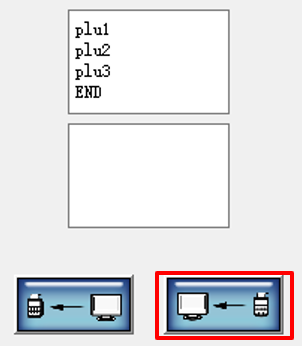
After the download is successful, the word “end” will be displayed.
2)intall
Clicking the “install” button to install the current item file to ECR.
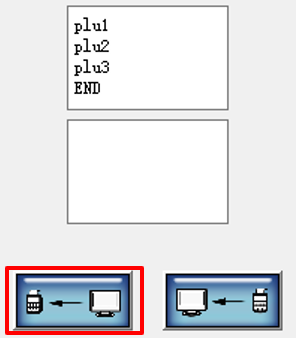
After the install is successful, the word “end” will be displayed.
5) Admin
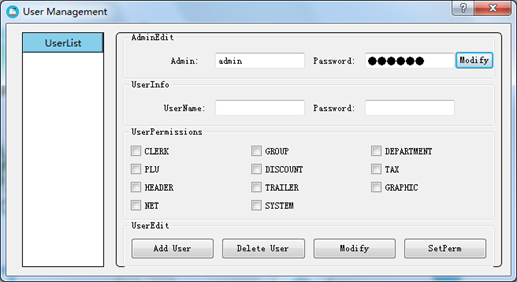
Click the ADMIN icon on the main interface by administrator to entre the User Management window.In this window you can add,delete or modify users.and also you can select a user to limit his permissions.Tick an item to indicate that permission is allowed.
About the administrator,default username is “admin” and password is “123456”.And it also can be modified in this window.
6) RESET ECR
You can reset all the parameters and clear all the data saved in ECR.
Please ensure the serial connection between ECR and ECRmate is OK.
After choosing menu Tool,ClearData in turn,there will a small dialog pop up.
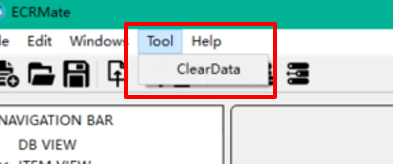
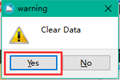
Clicking Yes button to try to reset the ECR which is connected with ECRmate,you will see a prompt on cash register display. Then you can set a new time and date and reset the ECR by pressing <CASH> key.
previous postsFAQ9:How to update the firmware via U disk ?